Everything your church does, Sunday through Saturday.
Giving, kids check-in, events, groups, sermons, kids lessons, the booth on Sunday morning and the screens in your building, in one app your people open on their phones and your staff run from any computer.
Free for every church, funded by donations. The demo is a whole sample church you can click through; nothing you do there is real.
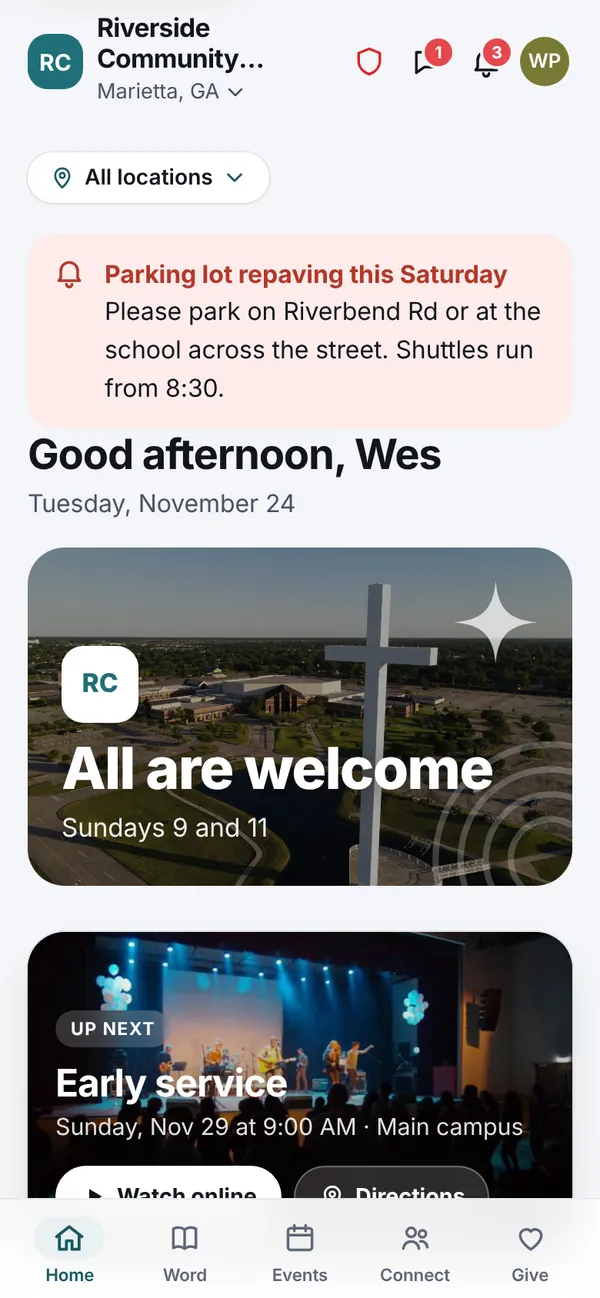
A week at church, in one app
Sunday is the big day, but church happens all week. Here's what Our Faithful does on each of them.
Sunday
Kids check in at a kiosk and get a printed name tag. Parents keep a pickup code. The lesson plays on the classroom screen, and people give from their phones.
Check-in, lessons, givingMonday
Parents open what their kids learned: a summary, questions for dinner, a project and something to read together. Sunday's offering, counted and checked by two people, goes to the bank.
Parent portal, offering countTuesday
First-time guests get a follow-up, and the care team works through the prayer wall.
Guests, prayer, careWednesday
Small groups and classes meet. Leaders take attendance and message their group.
Groups, classes, chatThursday
The volunteer schedule goes out. People accept, block out dates or ask for a sub.
VolunteersFriday
Event sign-ups close, the lobby screens change over for the weekend, and the youth group plays Bible games on the big screen.
Events, screens, game nightSaturday
The service plan, songs, slides and cues are ready for the booth, the band's set list, the stage display and the livestream.
Service plans, the booth
Made for the people who make Sunday happen
Everyone gets the tools for their part, and only those. A greeter never sees giving records; a treasurer doesn't need the stage display.
Pastors and teachers
Build a sermon, a Sunday school lesson or a study guide, then present it from the same place. Scripture fills itself in. On a computer, the Study pane sits beside your writing with the passage and Veritas Logos people, places and topics you can drop straight into the message. Kids lessons can start from a Bible story in the Veritas Logos Family Library, with pictures, crafts and games that match the story.
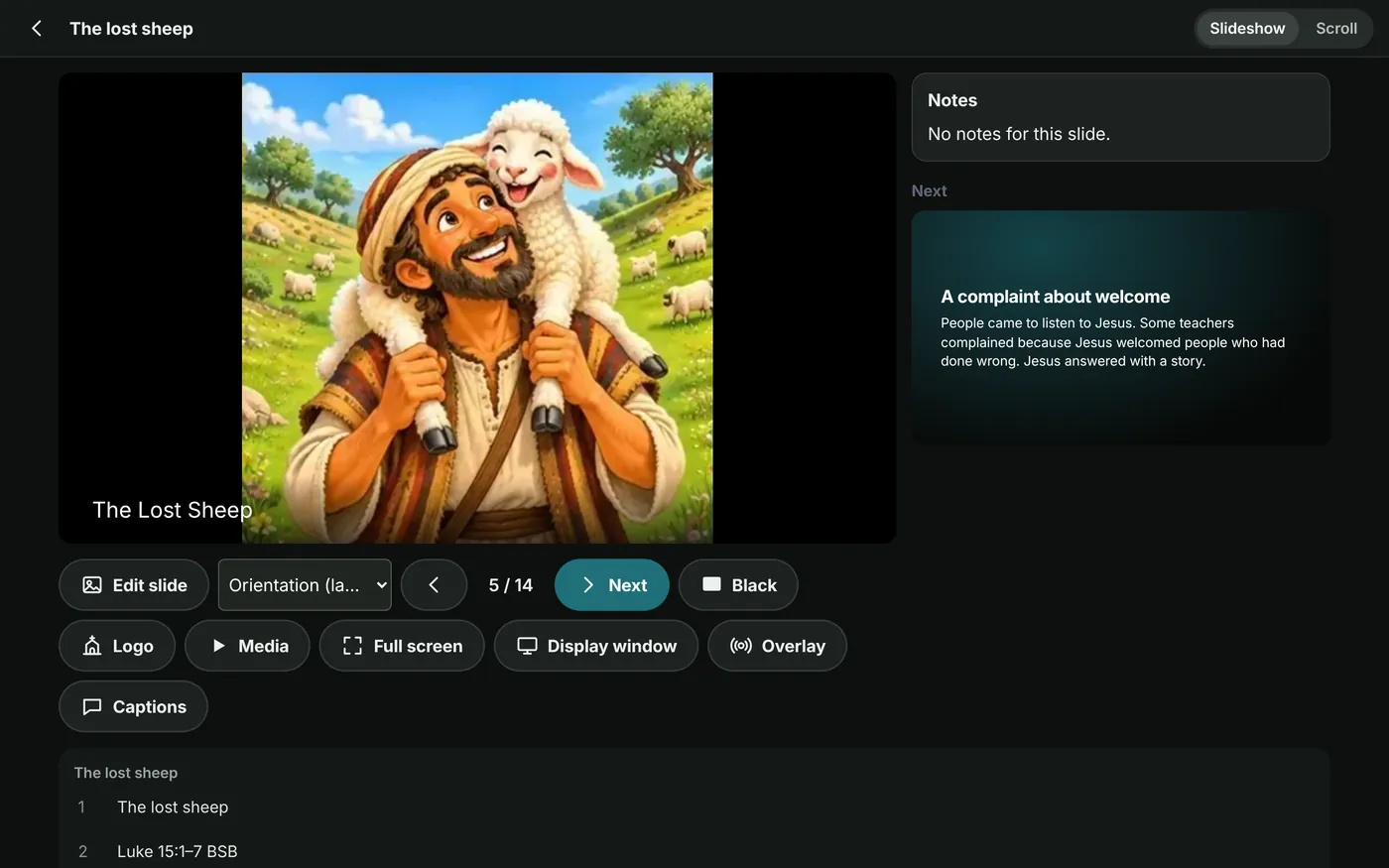
Kids ministry
Check-in stations print name tags with allergies and pickup codes. Classes have rosters and attendance. Coloring pages stay private in class, and parents get the take-home page.
Church office
Online giving with funds and campaigns, an offering count that two people check before the deposit, budgets, reports you can sort and download, and year-end giving statements. Each church connects its own Stripe, PayPal or Square account, so gifts go straight to the church.
Welcome team
A Plan your visit page, a campus map with directions from wherever someone is standing, first-visit cards, and NFC tags people can tap at the welcome desk.
Production and tech
Service plans, songs with CCLI details, a booth view with Preview and Program, cues for OBS, a phone remote, a set list for the band, a stage display, a livestream overlay and captions. Lobby screens run playlists on a schedule and keep playing if the internet drops.
Safety team
Alerts, drills, door checks, a push-to-talk radio and child reunification, for the people your church trusts with them. On a computer, a security desk and a small toolbar that stays on top of your camera software.
Youth and fellowship
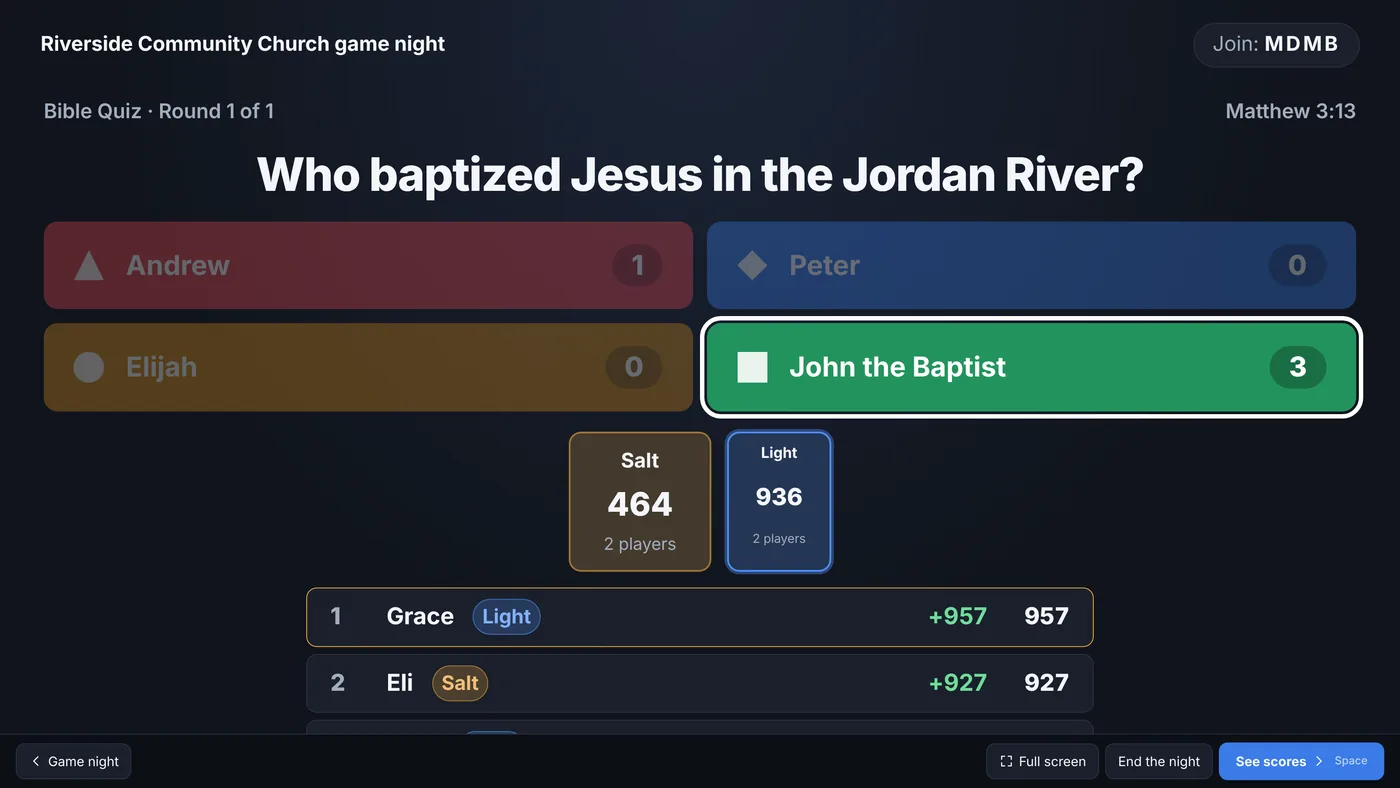
Bible game nights on the big screen, with everyone playing on their own phone. Plan the night, pick the difficulty, and write your own questions or draft them from Sunday's sermon.
Communications
Social posts, slides, lobby screens and flyers, filled in with your service times, events and logo. Move and lock every piece, take colors from your photo, then send it to the media library or a screen.
Everyone else
Sermons and the livestream, events, small groups, the prayer wall, the directory, chat, reading plans and giving, on their own phone.
Sunday morning, from the booth
The service plan becomes the slides. The booth sees what's next and what's live, takes the next slide when it's time, and every screen in the room follows.
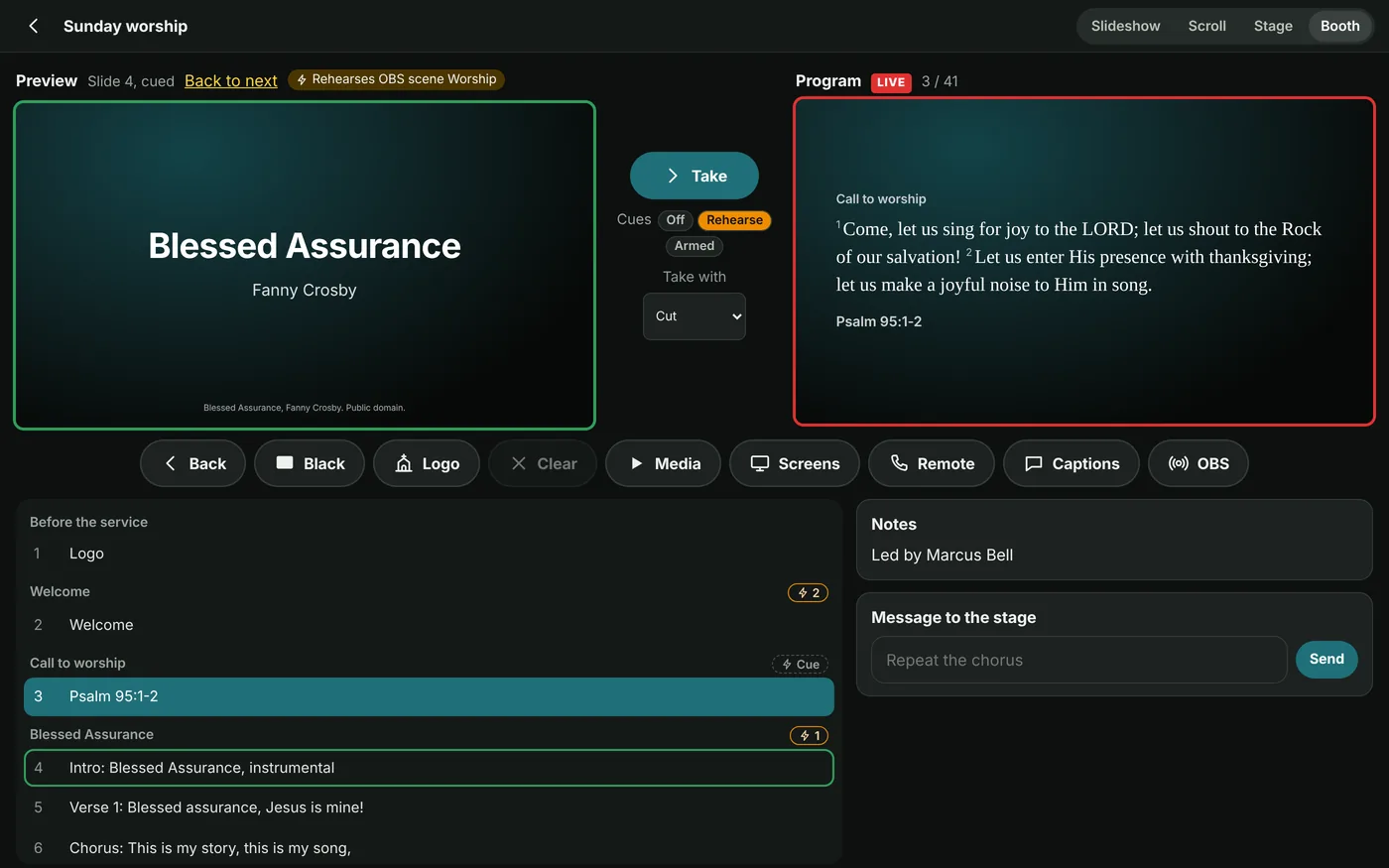
Preview and Program
Cue the next slide, then take it with a cut or a fade. Black screen and your logo are a click away.
Cues that run themselves
A part of the service can switch the OBS scene, start the recording or send a note to the stage. Rehearse them first; arm them on Sunday.
A remote in your pocket
Pastors and worship leaders move the slides from their phone, and a Stream Deck can run the booth through Bitfocus Companion.
Every screen gets its look
Full slides on the projector, words only on the side TVs, a lower third for the livestream, and the stage display for the band.
The band's set list
Keys, tempo and the sections sung today, on each musician's tablet, following along as the booth moves.
The screen wall
Every screen in the building on one page, live, with whether each one is online.
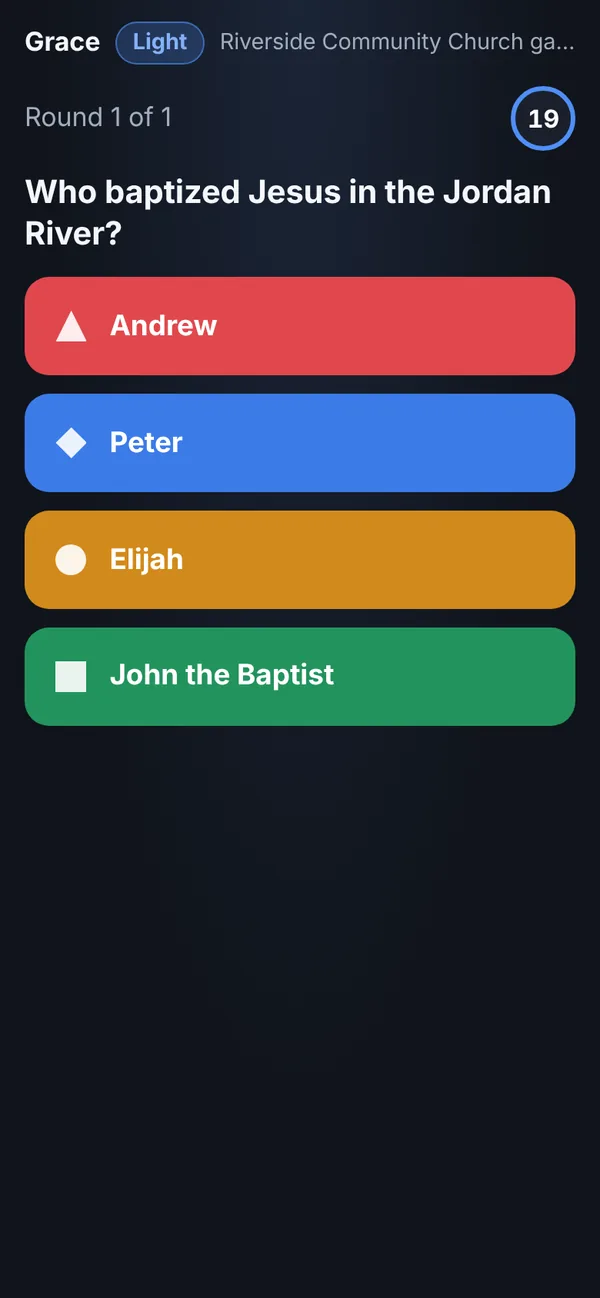
Game night, on the big screen
Put the game on the TV, and everyone joins on their own phone with a four-letter code. No app to install and no account. Answer fast for more points, play in teams, and watch the scores climb.
- Bible Quiz
- Name Scramble
- In Order
- Who Am I?
- Fake or Fact
- Bible Board, with buzzers and a final wager
Plan the night ahead: pick the games and the difficulty from kids to hard, see how long it will run, and check every question before anyone plays it. Flag one that needs fixing, write your own, draft a set from Sunday's sermon, or make new ones from Veritas Logos. Print the night's outline, with or without the answers.
At home on the office computer
On a phone it's an app. On a computer, it spreads out: a sidebar for everything your role uses, real tables, and room for two screens.
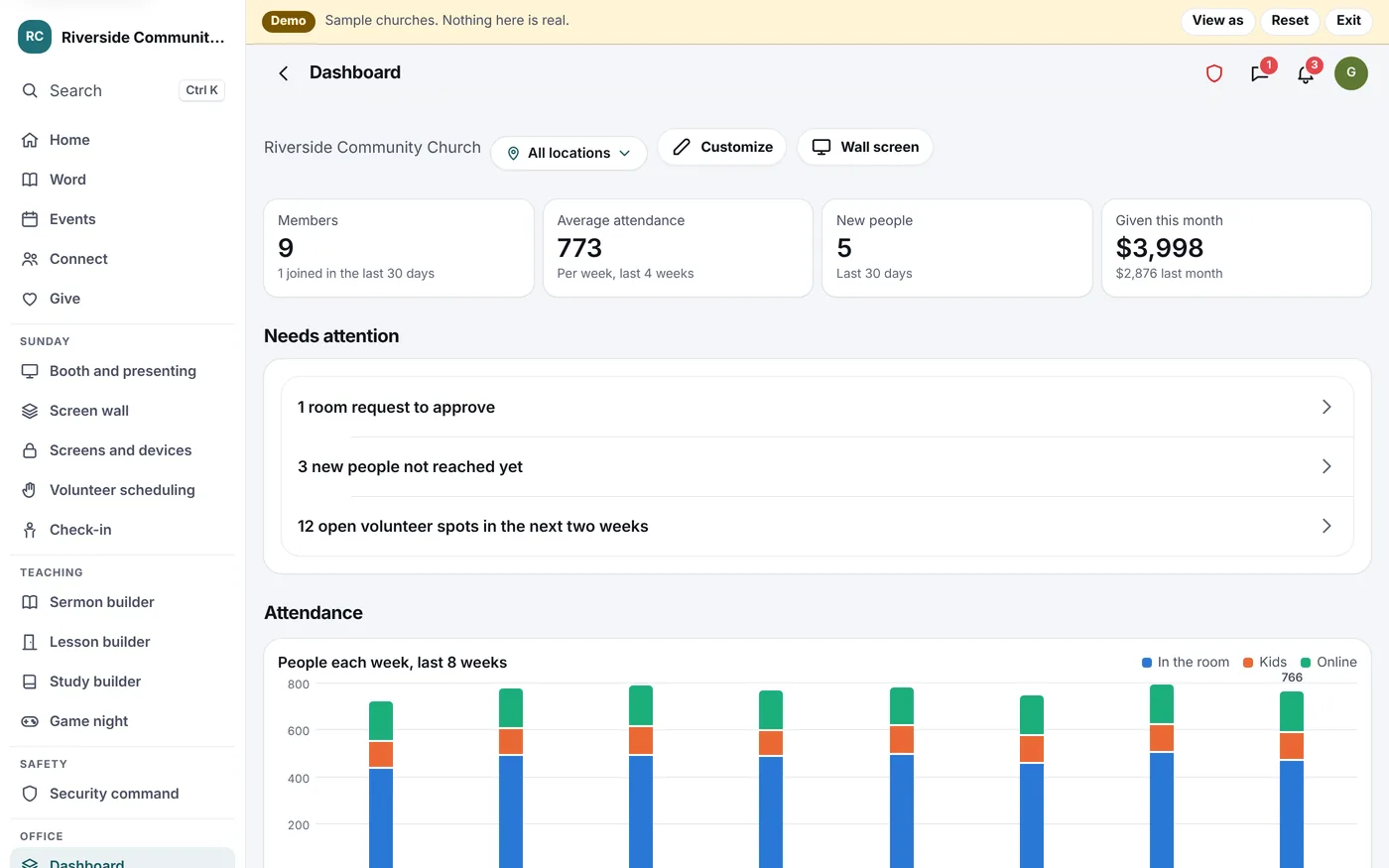
Find anything fast
Press Ctrl K to jump to a person, a page or a command. Keyboard shortcuts and right-click menus where you'd expect them.
Reports as real tables
Sort, choose columns, select rows, then copy them into a spreadsheet or download them.
A dashboard you arrange
Drag widgets where you want them and pick their width. Click a number to open its report beside it, or compare attendance and giving with last year.
Two screens
Pop the slides, your notes or the dashboard out onto a second monitor. Save builder layouts and share them with your staff.
Shared computers
The office, the counting room and the security desk sign in with a name and PIN, and lock themselves when no one is using them.
Offering count
Count the cash and enter the checks in a batch. A second person verifies it, then the deposit is recorded. Counters never see anyone's giving history.
How-to guides
Step-by-step guides in Help for the booth, game night, planning, the offering count and more, each with buttons that open the page it describes.
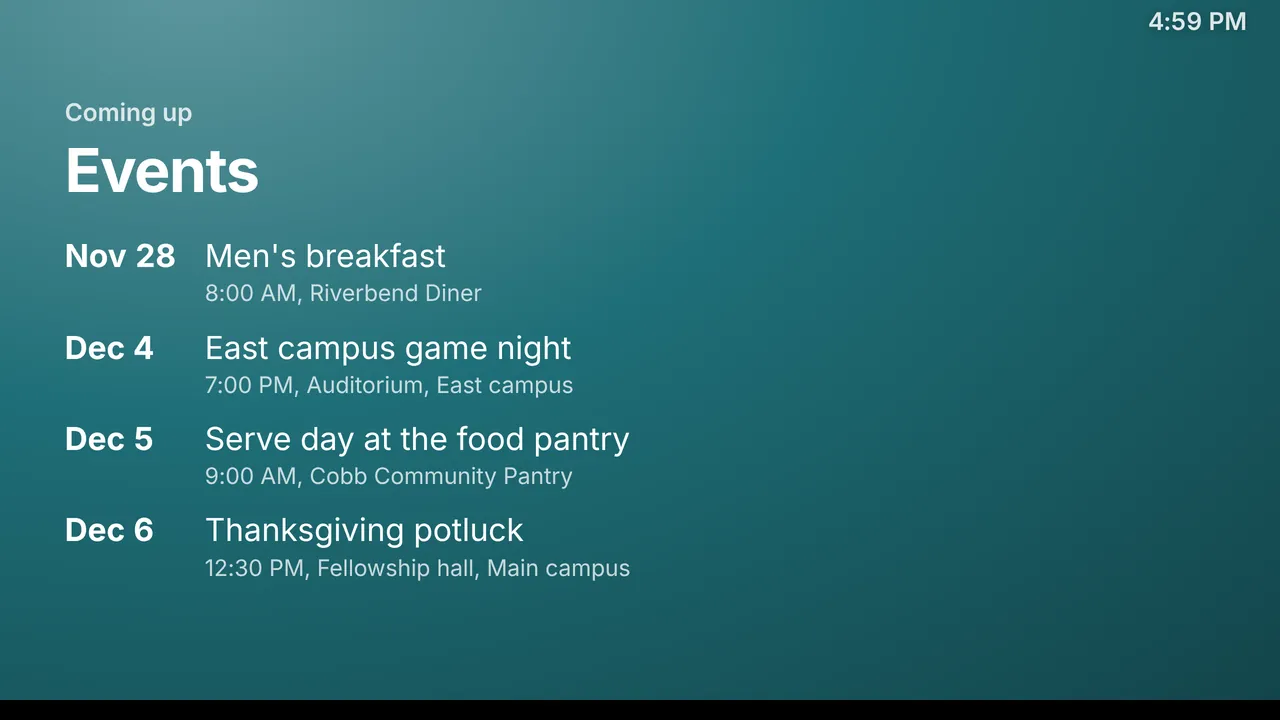
The screens in your building
Turn any TV into a lobby sign, a classroom display or a stage screen. Pair it once with a code. Playlists change on a schedule, and you can skip, pause or switch them from your phone. Our Faithful Screens puts it on Google TV and Android TV, and it starts again on its own after a power cut.
Don't have a church website? We can help.
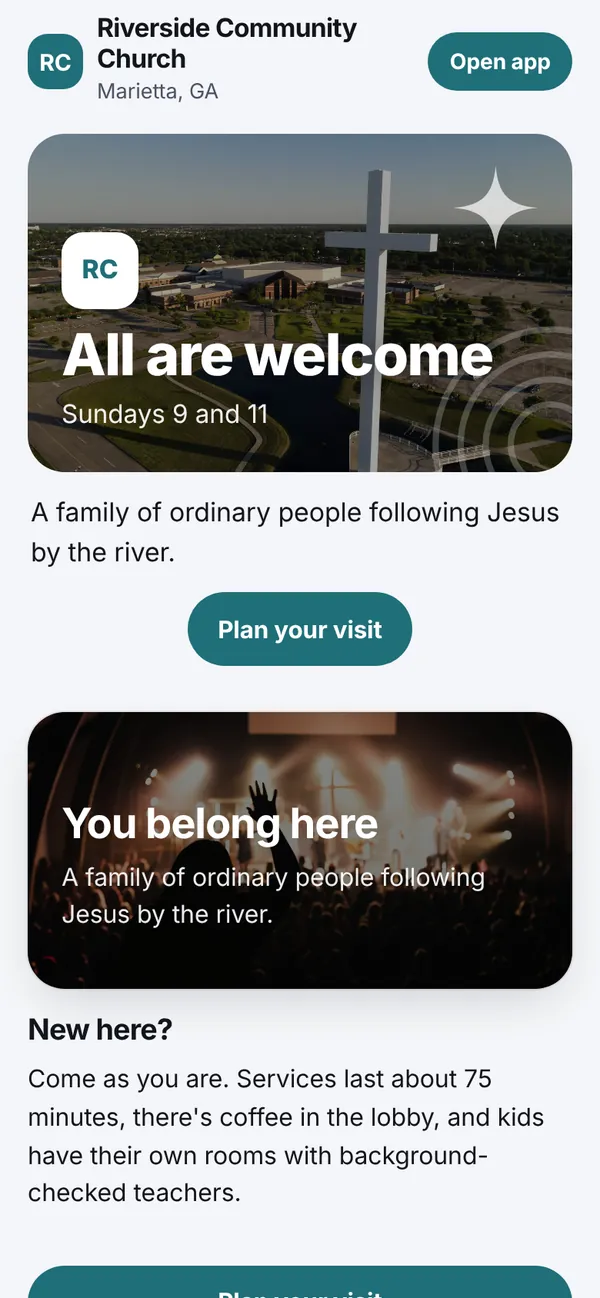
Every church gets a page of its own at ourfaithfulchurch.com/your-church: service times, directions, the latest sermon, a Plan your visit button and links to everything else. Build it from blocks in the app, with your logo and colors, and change it whenever you like.
Already have a website? Keep it, and use the page as the front door to the app.
Tap to open
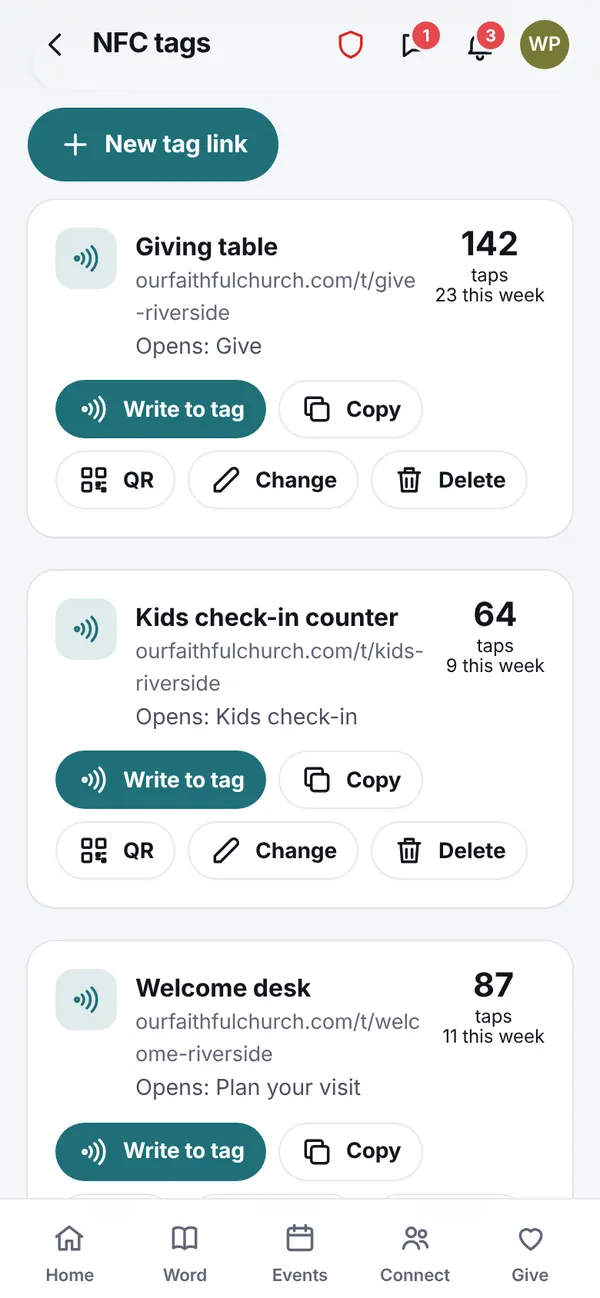
Put NFC tags on the giving table, the welcome desk and the check-in counter. A phone that touches one opens the right page. Change where a tag goes any time without rewriting it, and see how many taps it gets.
Get the app
- On the web
- Works now on any phone, tablet or computer. Open ourfaithfulchurch.com/app. On an iPhone, tap Share, then Add to Home Screen, and it opens like any other app.
- Android phones
- Coming to Google Play.
- Google TV and Android TV
- Our Faithful Screens, for the TVs in your lobby, classrooms and sanctuary. Coming to Google Play.
Questions churches ask
What does it cost?
Nothing. Our Faithful is free for churches and is funded by donations from people who want to see it help more churches. The only costs are the usual fees your payment provider charges on gifts your church receives, and texting fees if your church turns on text messages.
Can we try it before we sign up?
Yes. The demo church has sermons, events, groups, kids check-in and giving already set up, along with a service ready for the booth, offering batches to count and a game night to plan. Click around as a member or as an admin. Nothing there is real, and you can reset it.
How do people give, and where does the money go?
Your church connects its own Stripe, PayPal or Square account. Gifts, tickets and form fees go straight to that account, and each one charges its own fee per payment.
Who can see our church's information?
Each person sees what their role allows. You decide what greeters, teachers, staff and admins can do, and the database itself enforces it, not just the screens. There are no ads, and nothing is sold. The privacy policy has the details.
Do we need a website first?
No. Your church's page in the app can be your website, at its own address. If you have a website, link to the app from it.
Do people need an app or an account to play game night?
No. They open the link on the screen or type the four-letter code, then their name. Any phone with a web browser works.
What do we need in the booth?
A computer with Chrome or Edge. It can open the audience and stage screens on the right displays in one click, and it talks to OBS on the same computer for scenes, streaming and recording. The remote works from any phone.
Does it work on iPhones?
Yes, in Safari. Add it to the Home Screen and it opens like an installed app, with notifications.
We have more than one campus. Does that work?
Yes. Each campus has its own services, rooms, screens and check-in, and people see the campus they go to.
Bring your whole week into one place.
Free for every church, funded by donations.